
2K / 4K / 8K
Start at 2K for layout checks, or render 4K PNG and 8K JPEG finals.
Create and edit images with Kling Image 4.0.
Open another model page to compare settings, reference limits, and credit quotes.
Begin with a written brief in Text to image, or attach up to 10 JPG or PNG references in Image to image and cite them as @image_1…@image_10. Pick Auto or a fixed ratio, render at 2K, 4K, or 8K, and check exact credit pricing before generating.
Start at 2K for layout checks, or render 4K PNG and 8K JPEG finals.
Optional JPG or PNG guides cited in order as @image_1…@image_10.
Generates one high-detail still per run for focused iteration.
Combine clear scene descriptions with ordered image references while inspecting credit estimates up front.
Specify materials, camera angle, and lighting directions cleanly without needing reference uploads.
Upload JPG or PNG assets and cite them in order as @image_1 and @image_2 to keep silhouettes, glazes, or branding consistent.
Pick Auto or fixed aspect ratios. Test layout fast at 2K PNG, then export 4K PNG or 8K JPEG when details are locked.
Guide a product edit with a reference photo, specify exact poster copy, and choose an output size for how the image will be used.
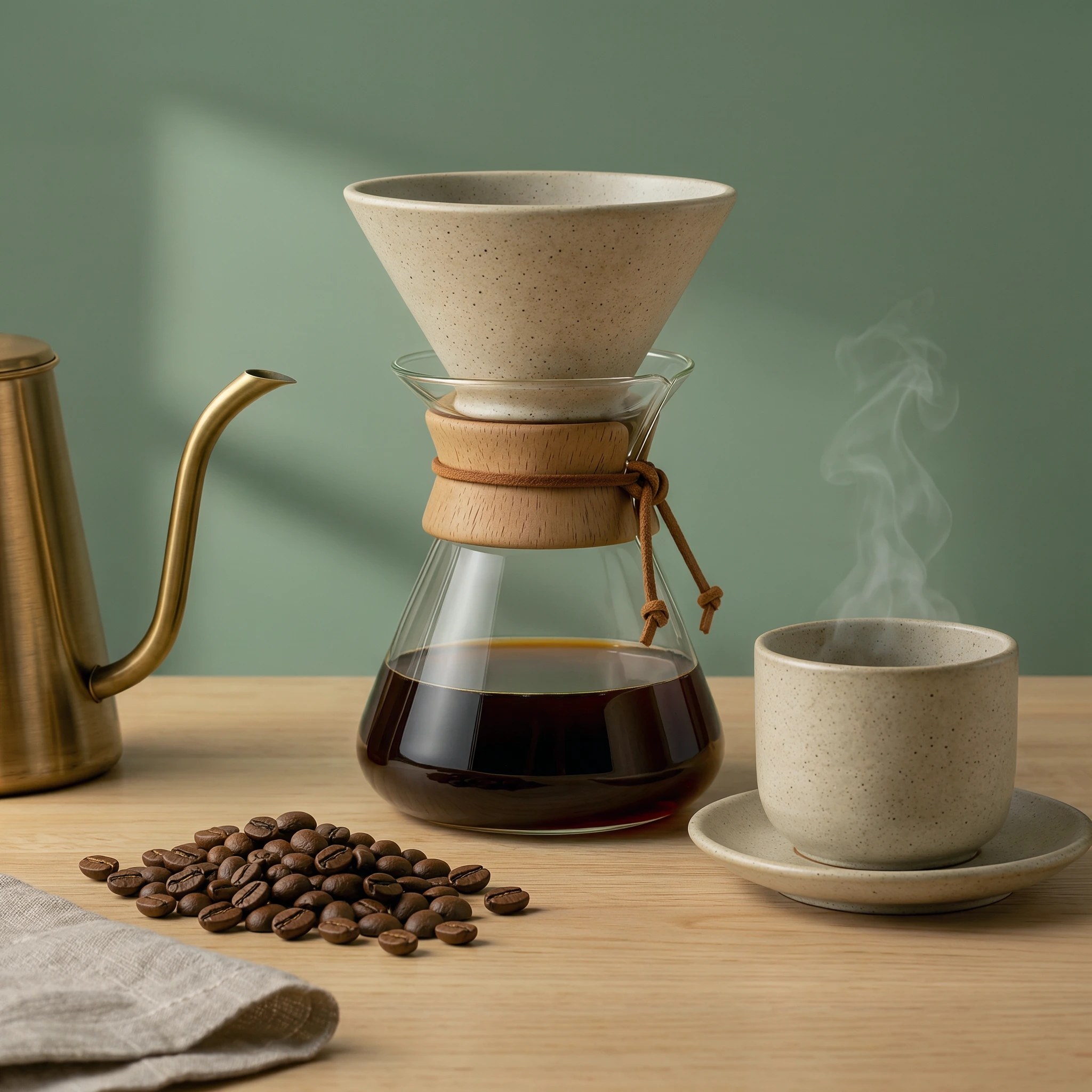
Cite an existing object with @image_1 while describing a new sunlit wooden counter, steam, and natural glass reflections without losing product proportions.
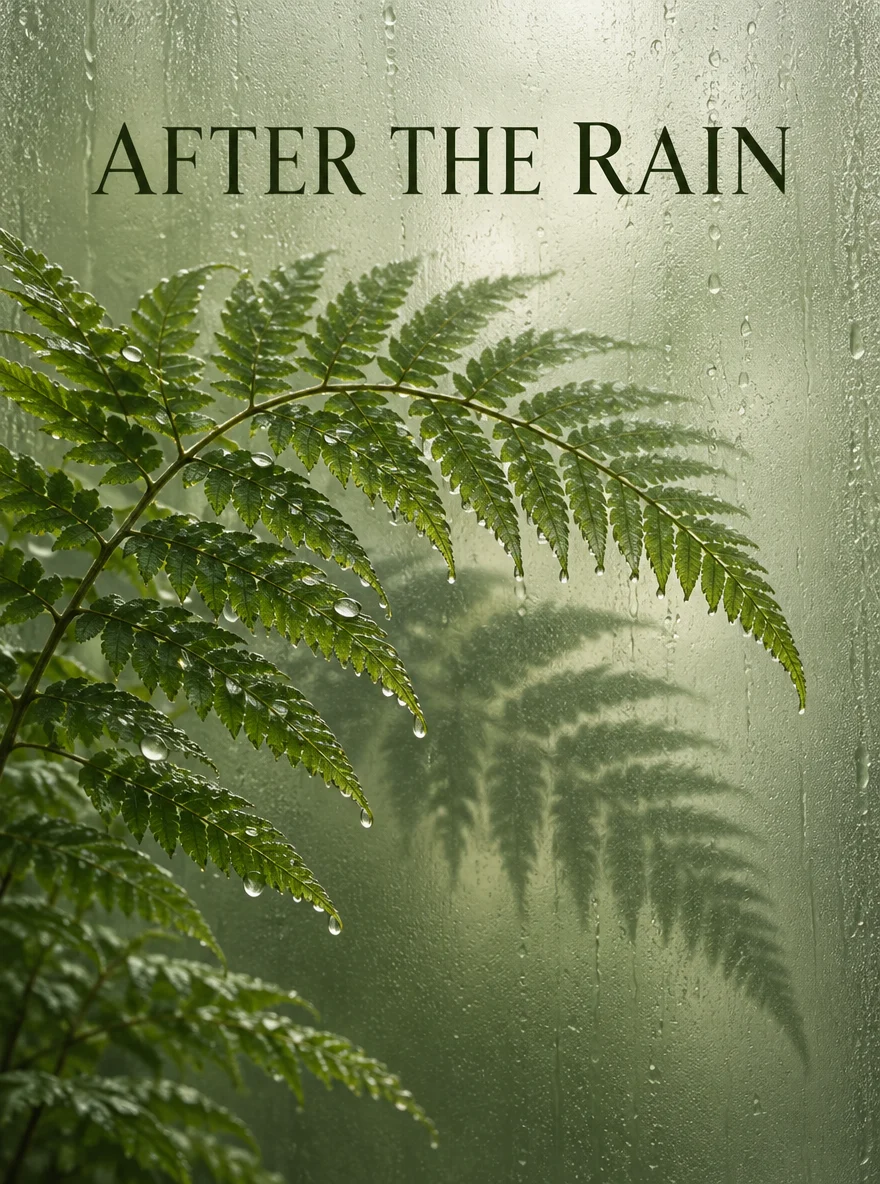
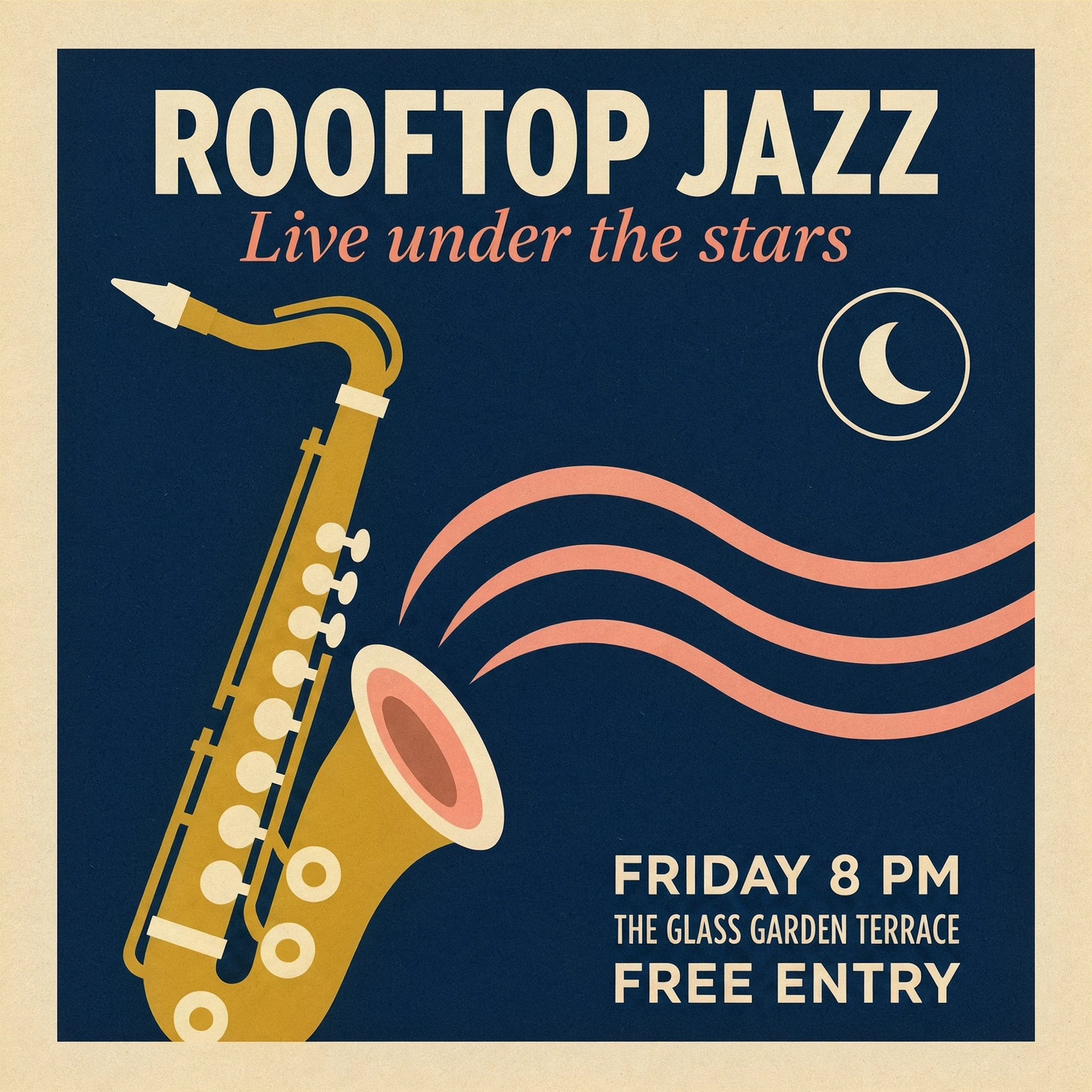
Wrap exact titles and event details in quotation marks, specify color contrast, and let the model compose structured typographic hierarchy.
Start at 2K to check the composition. Use 4K or 8K when you need more room to crop or show fine detail.
Write your prompt directly for a fresh still, or upload up to 10 JPG or PNG guides and cite them as @image_1, @image_2.
Select Auto or a fixed ratio, pick 2K, 4K, or 8K, and confirm the live VoraVideo credit quote on the button.
Inspect every word, surface seam, and reference detail; download your 2K/4K PNG or 8K JPEG output.
Kling Image 4.0 · FAQ
You can generate original still images from text prompts or run multi-reference edits with up to 10 JPG or PNG images, outputting one 2K, 4K, or 8K image per run.
One still image is returned per request. Series mode, custom elements, masks, and the separate long-image endpoint are not exposed here.
The estimate includes both the chosen output resolution and each attached reference image. Always review the live button quote before submitting.
2K and 4K outputs normally return PNG, while 8K outputs return JPEG. Pick the tier suited to your downstream edit or print layout.
Put the exact headline or wording in quotation marks and specify contrast and placement. Proofread every word in the finished still before publishing.
Start with a text brief or attach up to 10 JPG or PNG references, pick 2K, 4K, or 8K output, and review credits up front.