
1
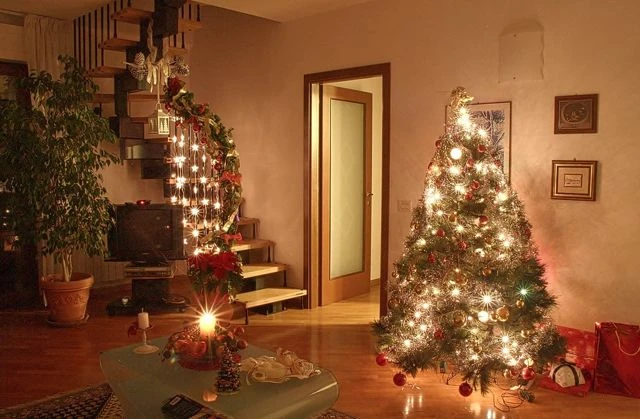
Upload one empty room or entrance photo with floor space near the tree or door. Keep people out of the frame.
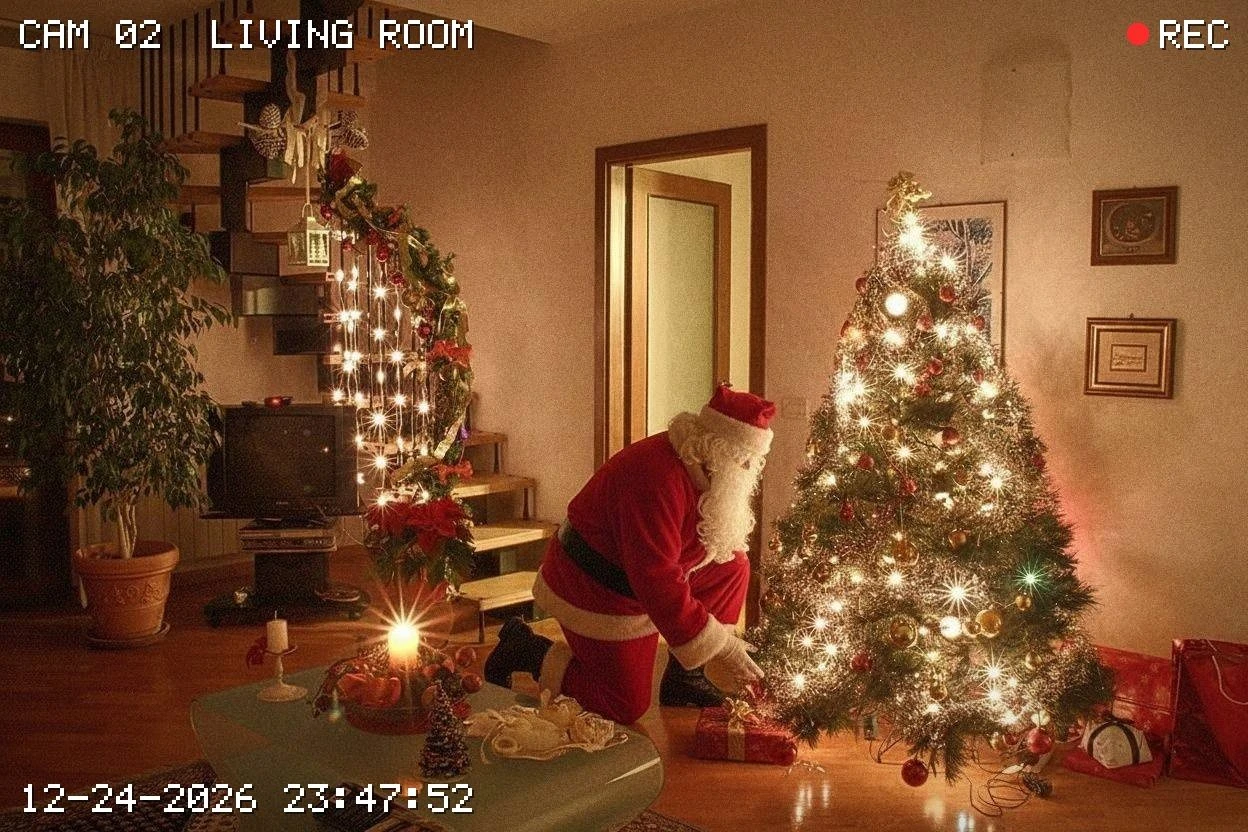
Add Santa leaving gifts in your own room, styled as a home-camera photo.
Open a model page to choose settings and write your own prompt.
Add Santa leaving gifts in your own room, styled as a home-camera photo.
Upload one empty room or entrance photo with floor space near the tree or door. Keep people out of the frame.
Check the room layout, Santa’s scale and the contact between gifts and the floor.
Review the credit quote before submitting. Each new generation creates a separate task with its own cost.
Upload one empty room or entrance photo with floor space near the tree or door. Keep people out of the frame.
For example: use monochrome night vision and put Santa to the left of the existing tree. Keep the sofa unchanged.
Review the credit quote before submitting. Each new generation creates a separate task with its own cost.
The room photo sets the space. Santa, gifts and camera-like texture are added around the furniture you already have.
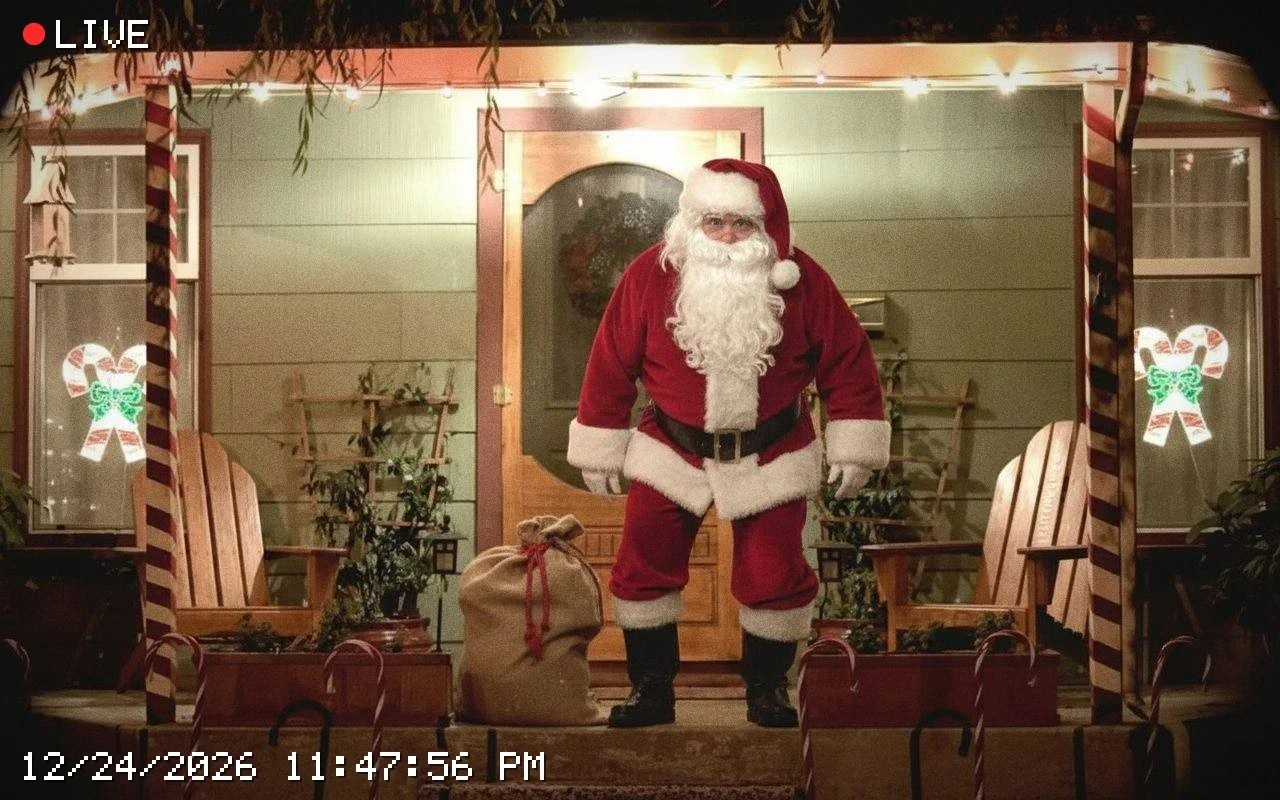
The tree, doorway and furniture guide the setting. A clear floor area gives Santa a believable place to stand or kneel.
The edit asks for matching scale, shadows and occlusion, with a wrapped gift set down beside the existing tree or entrance.
Use the notes for night vision or a doorway snapshot. The default is a lightly grainy security-camera photo, without a generated timestamp.
Upload one empty room or entrance photo with floor space near the tree or door. Keep people out of the frame.
For example: use monochrome night vision and put Santa to the left of the existing tree. Keep the sofa unchanged.
Review the credit quote before submitting. Each new generation creates a separate task with its own cost. Check the room layout, Santa’s scale and the contact between gifts and the floor.
Questions before generating
Upload a room or entrance, not a selfie. Leave visible floor space and avoid people in the shot. You do not need to upload a separate photo of Santa.
Use a clear entrance or name a visible spot in the notes. The preset can place Santa by the doorway; adding a new tree is not required.
Describe monochrome night vision in the optional notes. There is no separate camera-style switch on this page, and the result may vary with the lighting and viewpoint of your photo.
The edit asks to keep the room layout and furniture, but small shapes, decorations and textures may change. Compare with your original before sharing.
No. This page outputs one 2K photo with automatic aspect ratio, without speech or motion. Santa FaceTime is the separate video greeting effect.
The preset avoids generated timestamp text, and has no timestamp editor. Describe a different placement and submit again for a new version; each new generation has its own quote.
Add Santa leaving gifts in your own room, styled as a home-camera photo.