

1
Upload one clear sketch as JPG, PNG or WebP. Crop away the desk and keep the whole subject in view.
Turn a sketch into a realistic color image guided by its subject, pose and composition.
Open a model page to choose settings and write your own prompt.
Turn a sketch into a realistic color image guided by its subject, pose and composition.
Upload one clear sketch as JPG, PNG or WebP. Crop away the desk and keep the whole subject in view.
Check the outline, materials and small details before downloading.
Review the credit quote before submitting. Each new generation creates a separate task with its own cost.
Upload one clear sketch as JPG, PNG or WebP. Crop away the desk and keep the whole subject in view.
For example: make the portrait look like a natural color photograph, keep the face angle and hairstyle, with soft daylight.
Review the credit quote before submitting. Each new generation creates a separate task with its own cost.
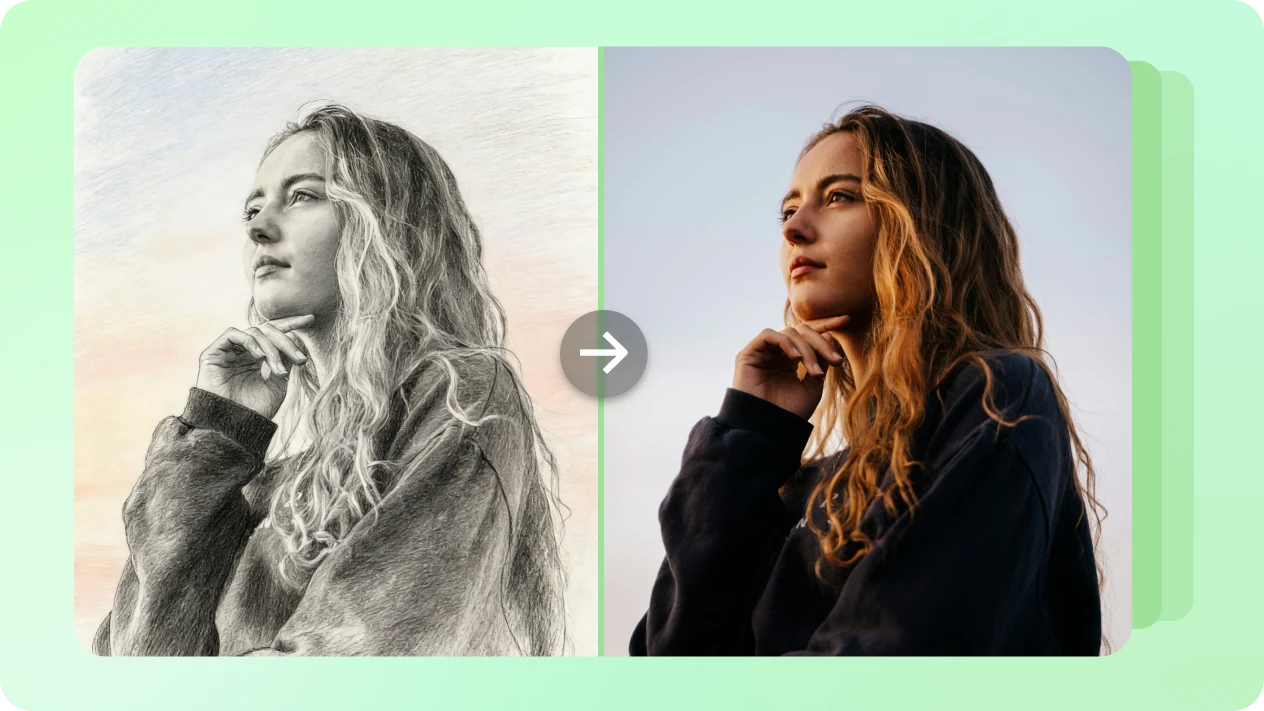
The official comparison shows a sketch becoming a color photo. The separate style illustration shows other directions; this page requests one image per run.
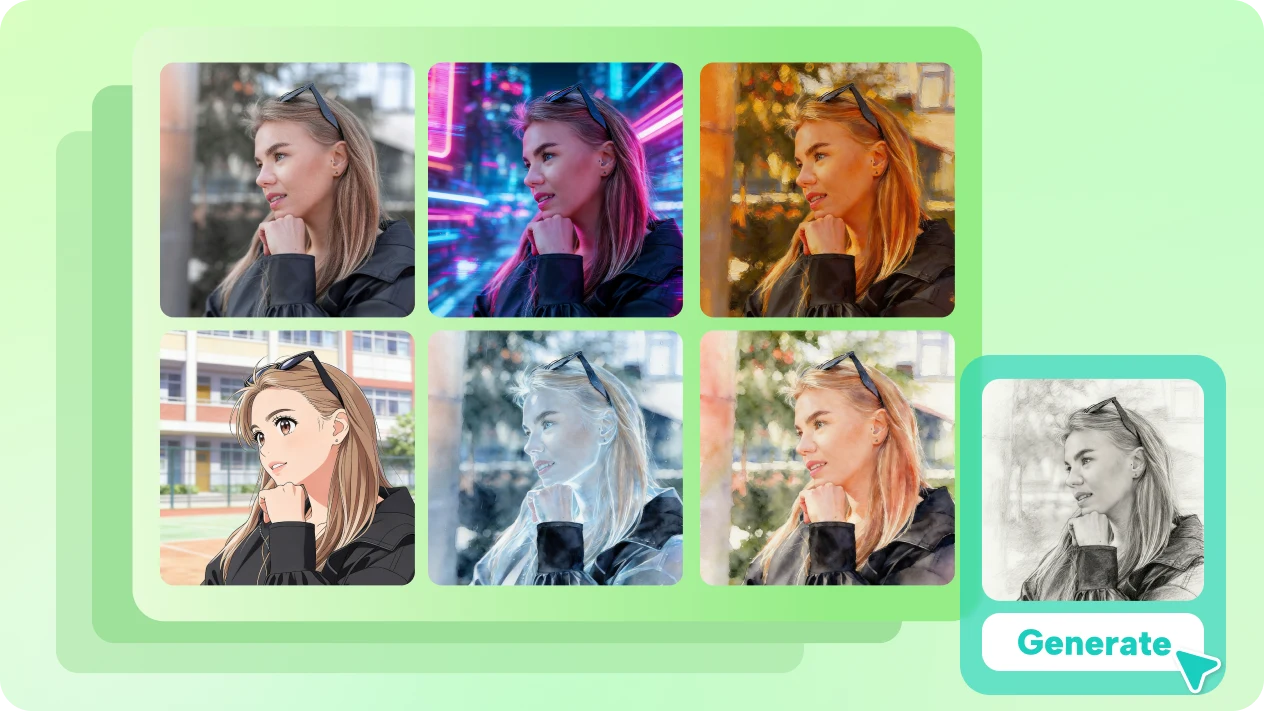
The sketch guides the face, hair, pose or main object. Clear outlines and visible details help explain which features matter.
The default direction is a realistic color image, rather than paper with tinted pencil strokes. You can describe skin, fabric, materials and lighting in the notes.
Use the drawing as a reference when checking facial angles, proportions and small parts. Details can change; a finished image is not an exact technical reconstruction.
Upload one clear sketch as JPG, PNG or WebP. Crop away the desk and keep the whole subject in view.
For example: make the portrait look like a natural color photograph, keep the face angle and hairstyle, with soft daylight.
Review the credit quote before submitting. Each new generation creates a separate task with its own cost. Check the outline, materials and small details before downloading.
Questions before generating
Yes. Use even light, keep the page flat and crop out the surrounding desk. Make sure pencil lines remain visible and the camera does not cast a shadow over the subject.
No. The sketch guides a new image rather than locking every edge. Perspective, proportions and small parts can change. Keep technical drawings or CAD files as the source of truth for dimensions.
Yes. Keep the intended subject and viewpoint clear, and explain which shapes matter. A rough floor plan does not automatically become a dimensionally accurate room model.
Describe the finish in the notes, such as brushed metal in studio light or a watercolor illustration. Without extra notes, the preset asks for a realistic finish with soft light.
It is one static 2K image in 3:4. This preset does not export animation, SVG paths, CAD geometry, 3D assets or separate editing layers.
Change the notes and submit again to request another version. That creates a new task with its own credit quote. Downloading an existing result does not start a new generation.
Turn a sketch into a realistic color image guided by its subject, pose and composition.