
Your image
Image to image
Upload a picture, pick an image model, and render a new still on VoraVideo.
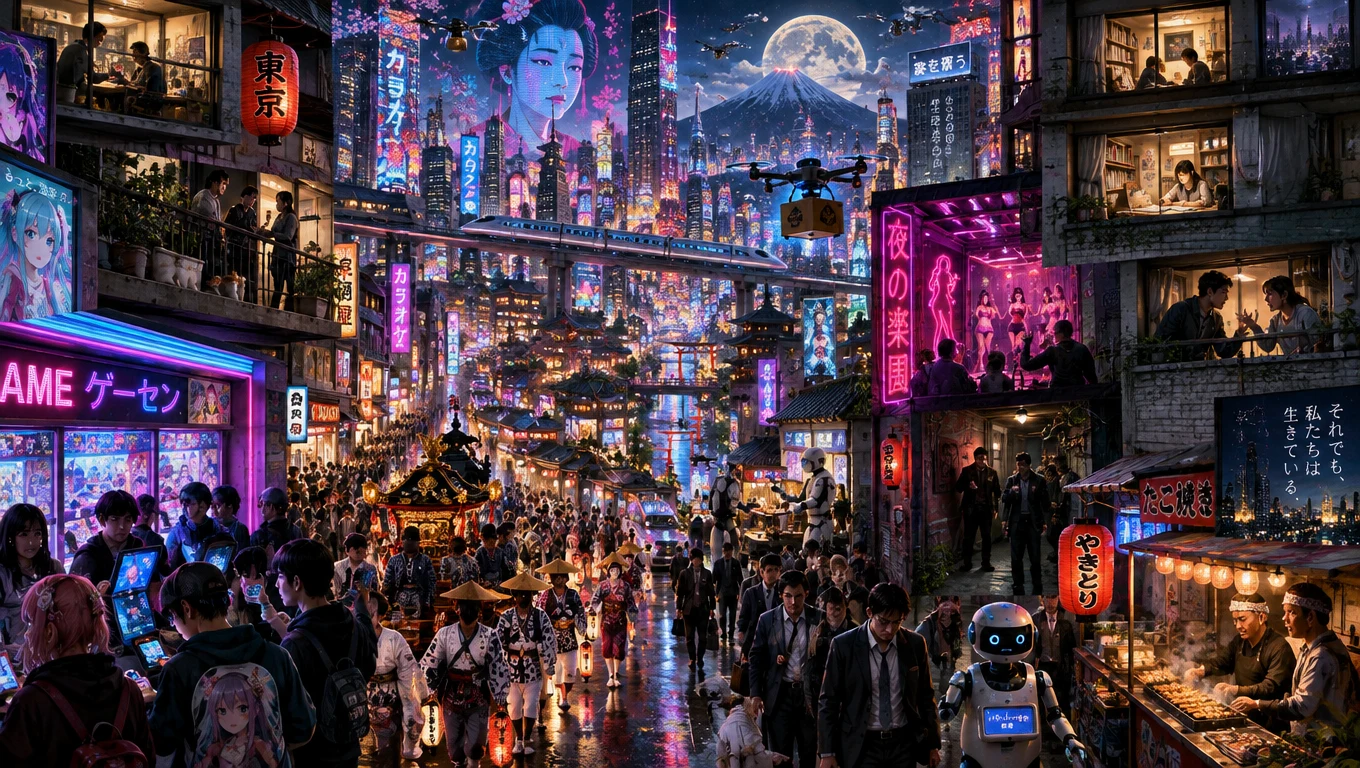
Keep the starting point. Change the direction.
Upload a reference image and describe the changes you want. Explore a new background, lighting or visual style with an image model. Say what should stay and what should change, then inspect the generated image for details that matter.
Choose your modelSet the outputSee credits first
Words that guide
A new image
A new take on your image.
Illustrative examples of creative directions. Your result depends on the image, prompt and selected model.
Product settings
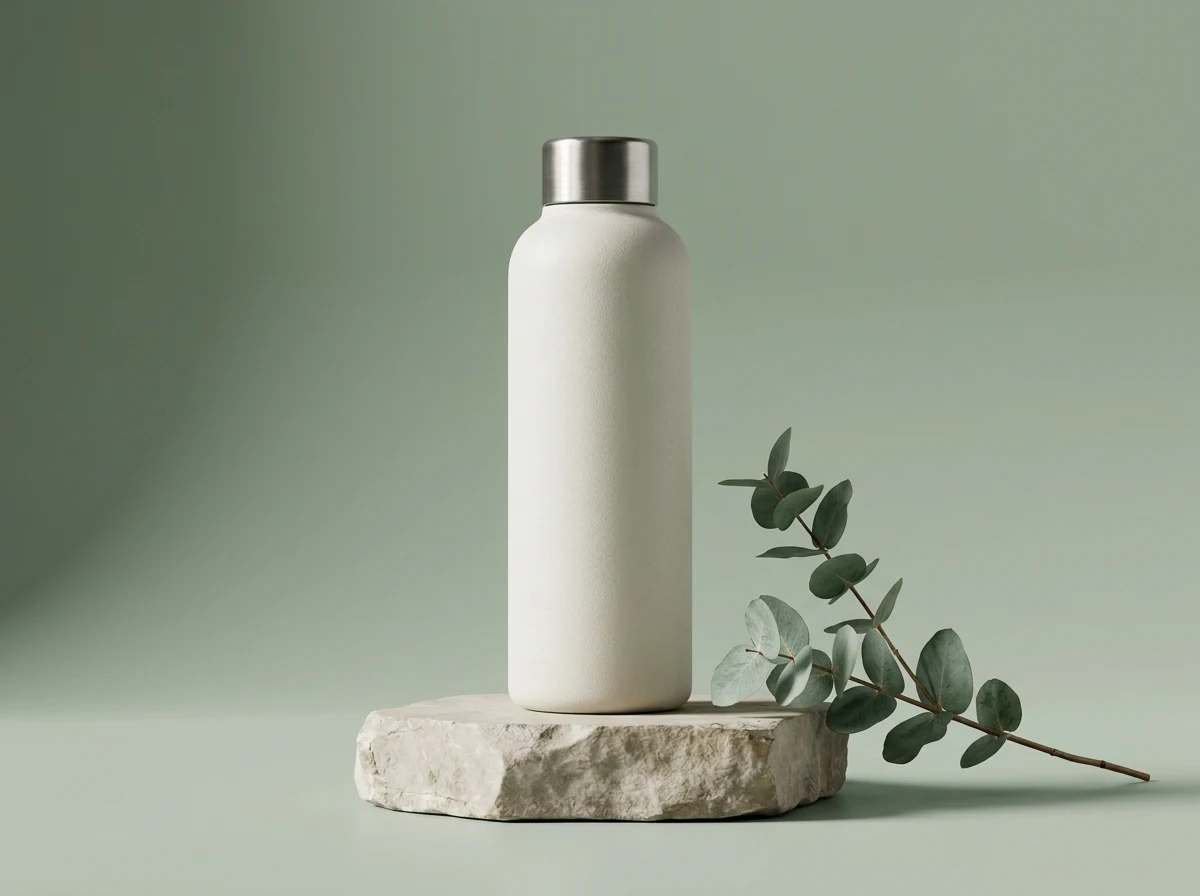
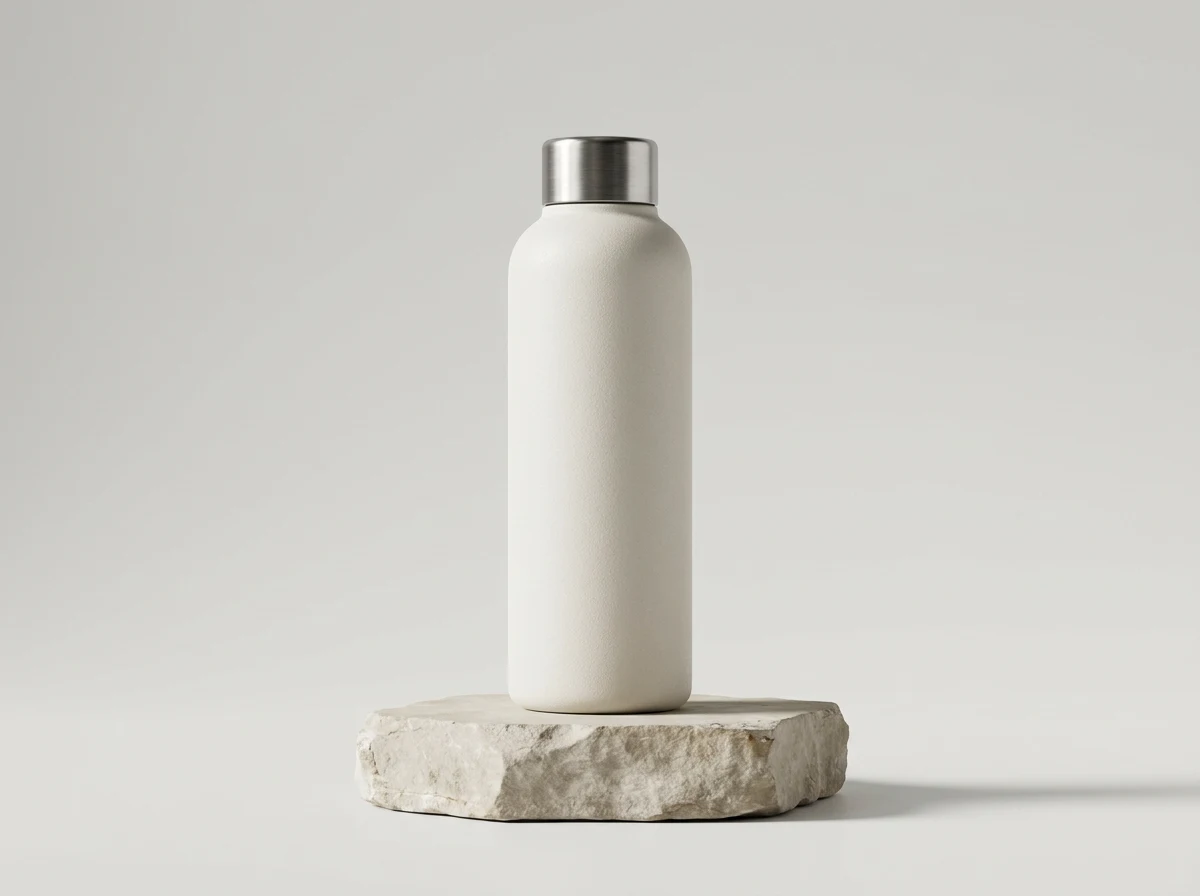
Place a product in a different visual setting. Describe the surface, background and light, and ask to keep the product shape. Check labels and proportions afterward.
Prompt idea
Keep the speaker’s shape, fabric texture and copper dial. Place it on a warm stone surface beside a softly lit window; change the setting, not the product design.
Check the result
Compare the dial, seams, dimensions and printed details with the source. If exact labels are essential, inspect them closely and finish precise corrections in an image editor.
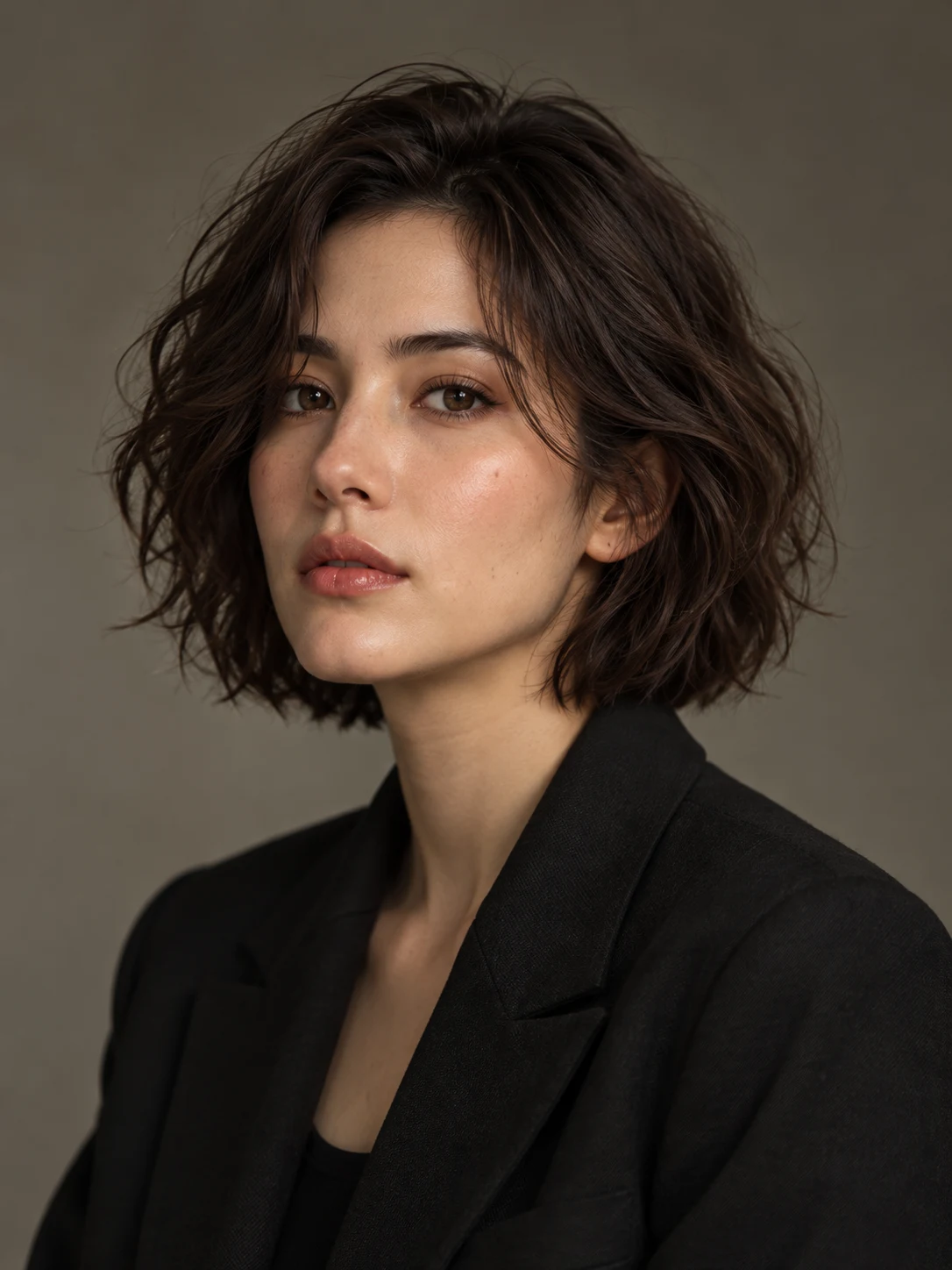
Portrait treatments
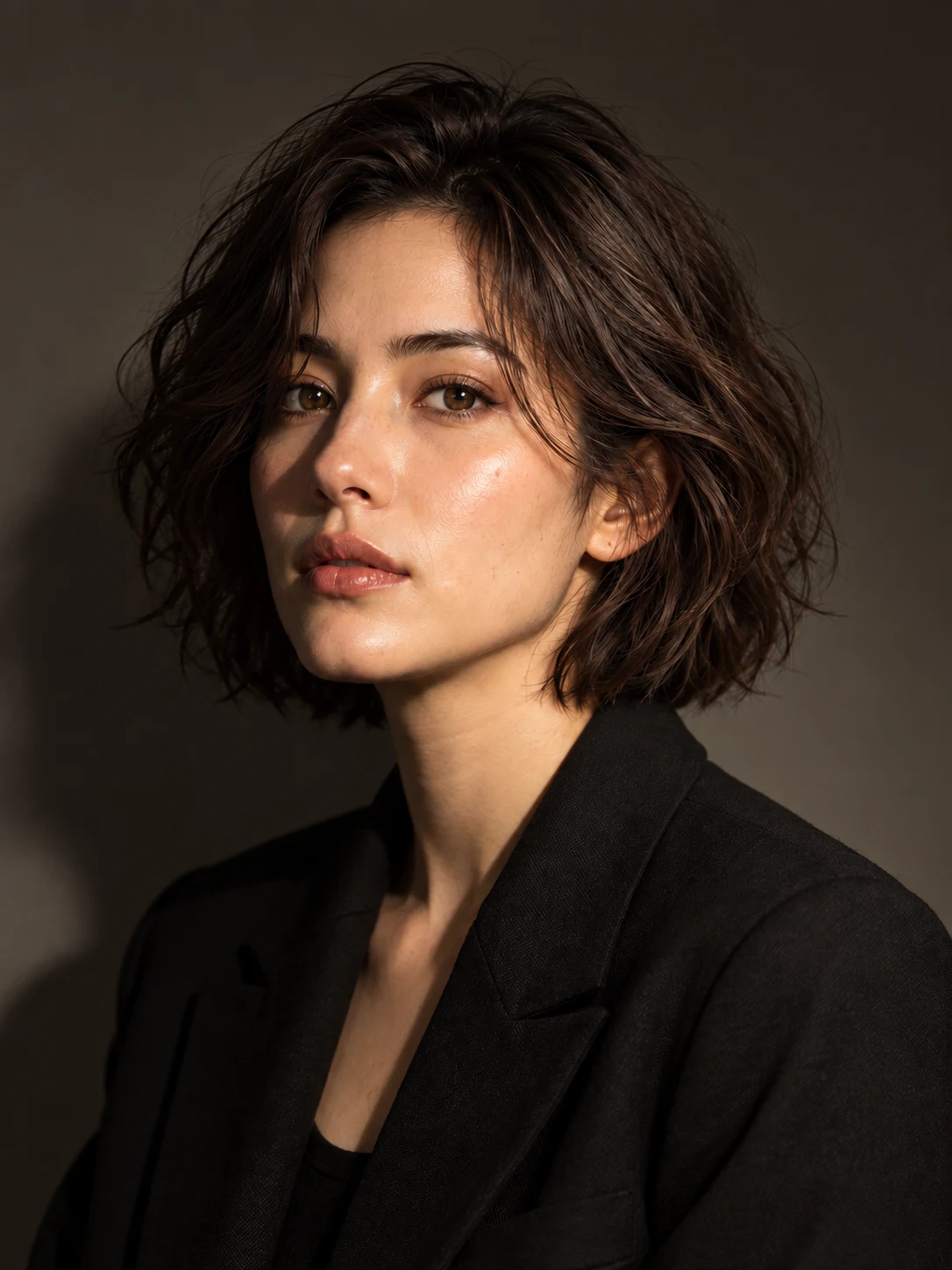
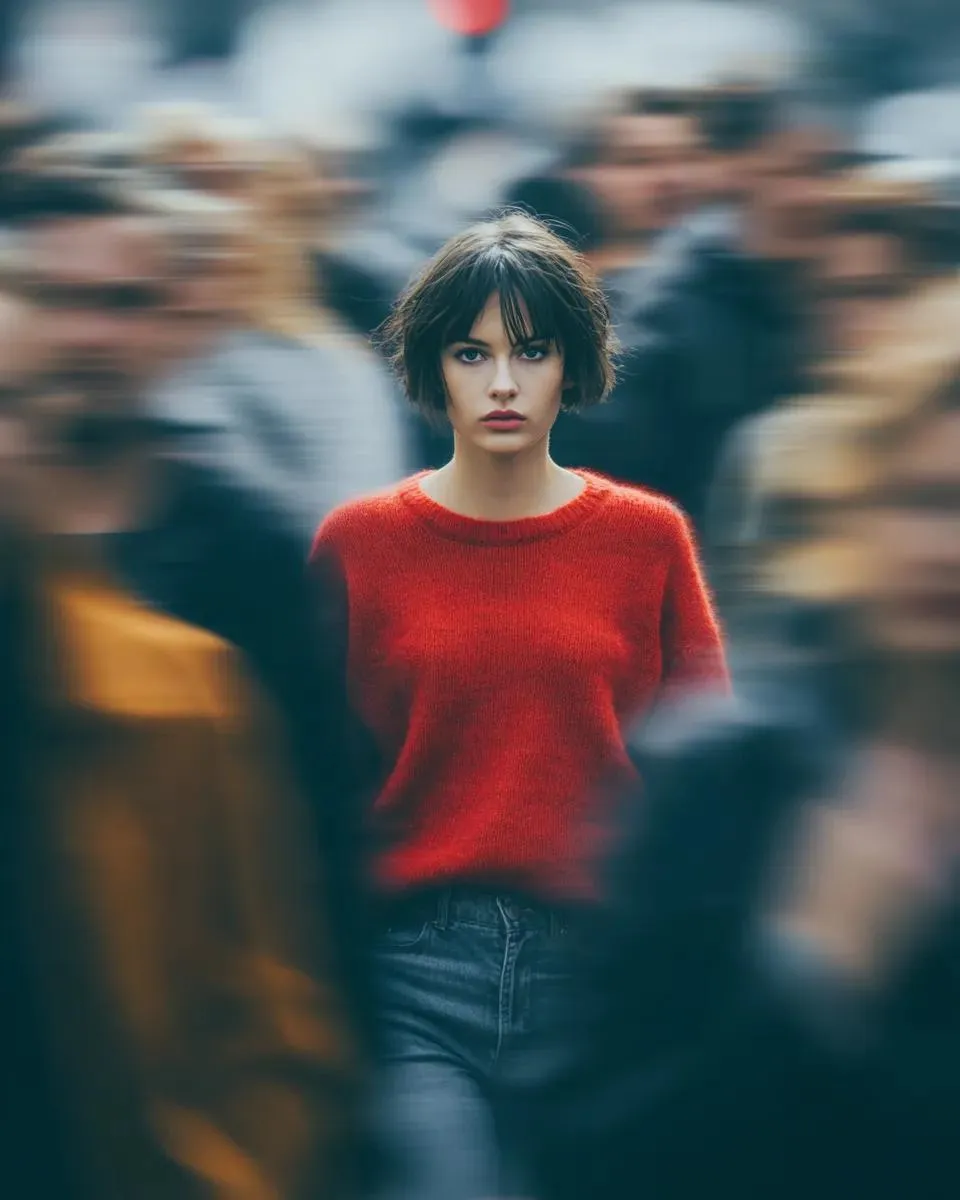
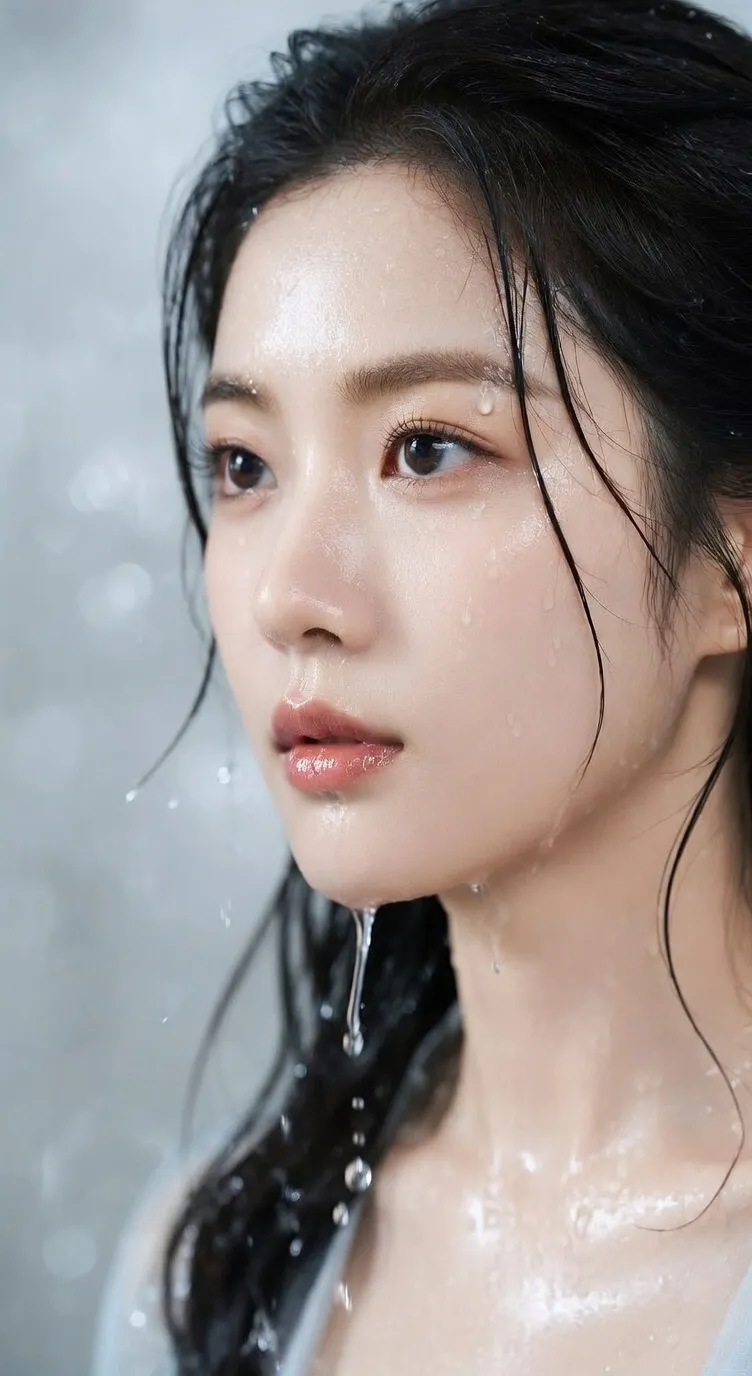
Try a lighting direction or illustrated style. Describe the change precisely and name the features you want to preserve; likeness can vary between generations.
Prompt idea
Keep the person’s hairstyle and clothing. Replace the flat lighting with soft side light and a darker neutral background, while retaining a natural skin texture.
Check the result
Compare face shape, expression and small accessories with the reference. If too many details change, narrow the request to lighting alone and regenerate with a new quote.
Creative variations
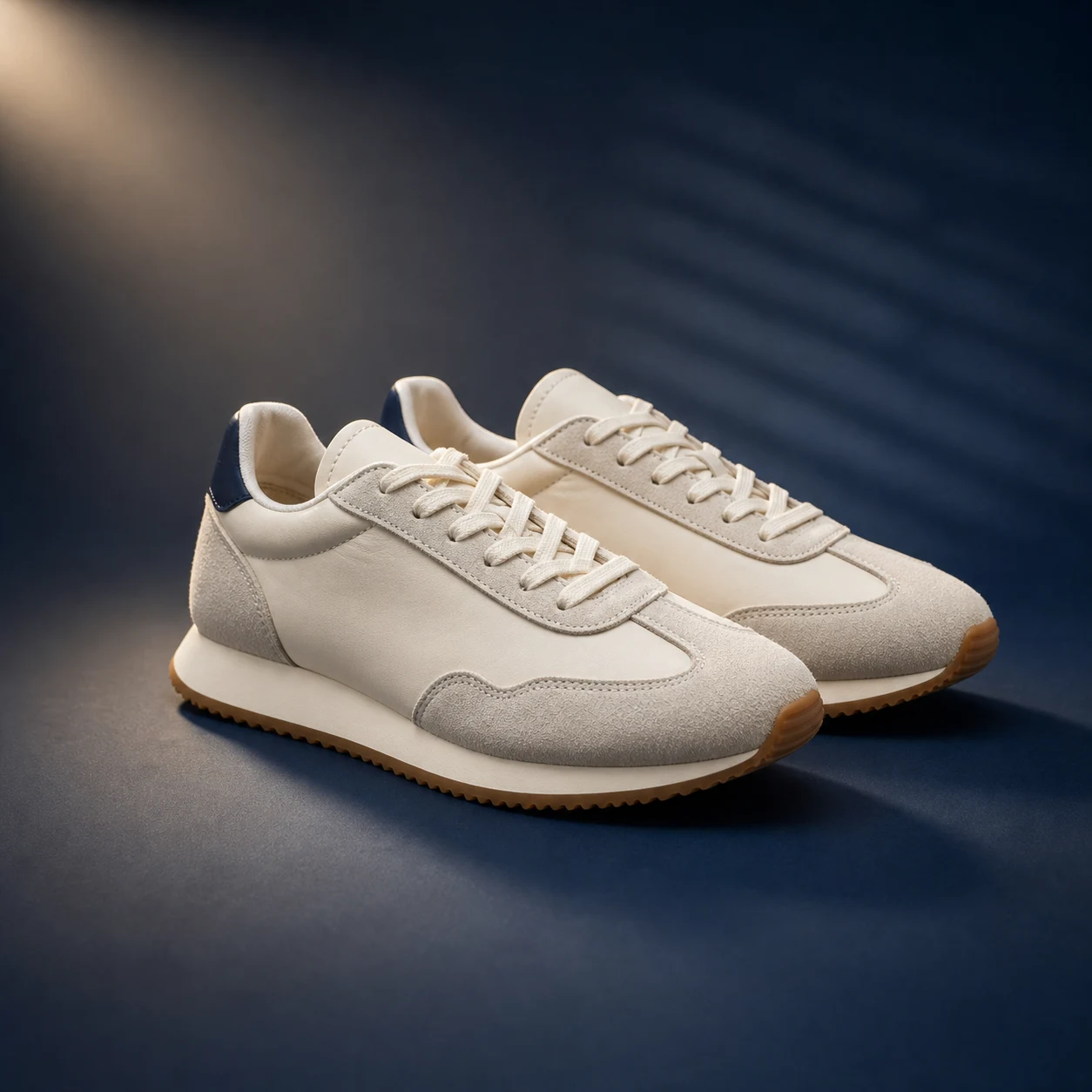
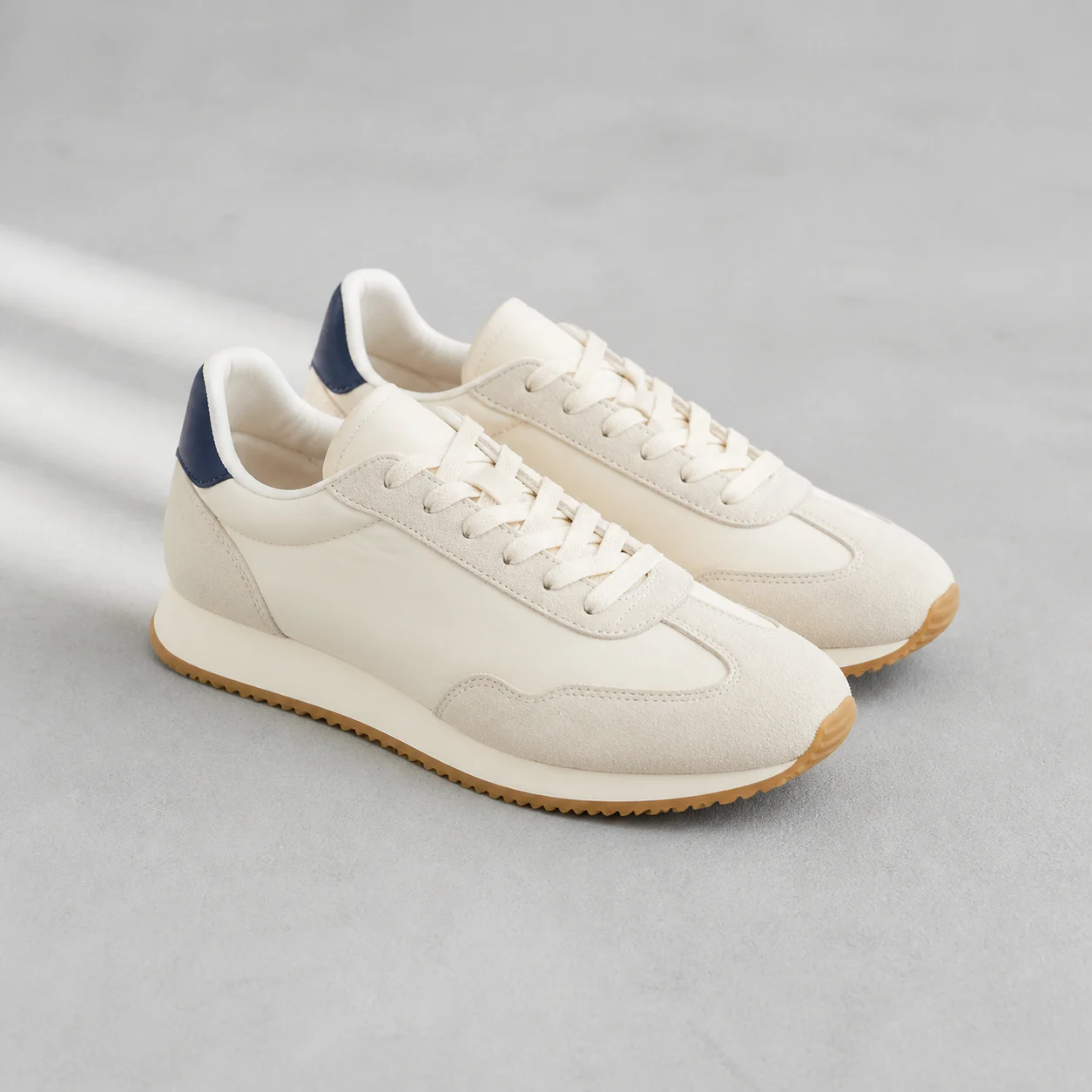
Explore a different palette or atmosphere from the same reference. Change one aspect at a time so it is easier to compare the results.
Prompt idea
Keep the vase, flowers and arrangement. Shift the palette toward warm terracotta and muted teal, with softer shadows and the same overall composition.
Check the result
Compare object placement, color and texture side by side. Change one aspect per attempt to see what caused the difference; do not assume each attempt is a pixel-exact edit.
Editing with image to image AI
Use a reference image to guide a new still, then separate what should stay from what should change. A prompt can request a background, lighting or style change, but it does not guarantee that every detail is preserved. Review the available model controls and the credit quote before generating.
Upload a picture
A clear photo is the starting still for the new image.
Guide the edit
Say what should change and what should stay: subject, background, lighting or style.
Choose your model
Before switching models, decide which input and controls you need. Upload limits and available settings follow the selected model; review them again after a switch.
Set the output
Choose the displayed output options for your intended use. Settings differ by model, and writing a size or duration in the prompt does not replace the matching generator control.
See credits first
The quote reflects the current model and settings. Check it after making changes, then inspect the result before submitting another request; a new generation has its own quote.
Generate and review
Check the credit quote, generate, then review your result before downloading.
Image models for this still
Open a model page to compare resolution and reference inputs.
How image to image runs
01
Upload a picture
A clear photo is the starting still for the new image.
02
Guide the edit
Say what should change and what should stay: subject, background, lighting or style.
03
Generate and review
Check the credit quote, generate, then review your result before downloading.
FAQ
Image to image FAQ
What does image to image do?
It starts from a picture and renders a new still with the model you pick.
Do I need a prompt?
Yes. Describe the change. The photo supplies the starting point.
Which models are on this page?
The menu lists published VoraVideo image models. GPT Image 2.5 is the start.
Which settings can I change?
The available controls depend on the selected model and tool. Use the options shown in the generator; switching models may change the available settings and upload limits.
How many credits will a generation use?
The Generate button shows the credit quote for your current model and settings before you submit. Check it again after changing settings or starting another generation.
What if the result is not what I expected?
Simplify the prompt and change one detail at a time. For image inputs, use a clear reference. Generated details can vary, so inspect each result before using it; a new generation has its own credit quote.
Give your image a new direction.
Upload a picture, pick an image model, and render a new still on VoraVideo.