
1
Upload one clear portrait, product or room photo. Keep the shadow and nearby well-lit areas visible.
Reduce distracting shadows while keeping your photo’s subject, background and natural depth.
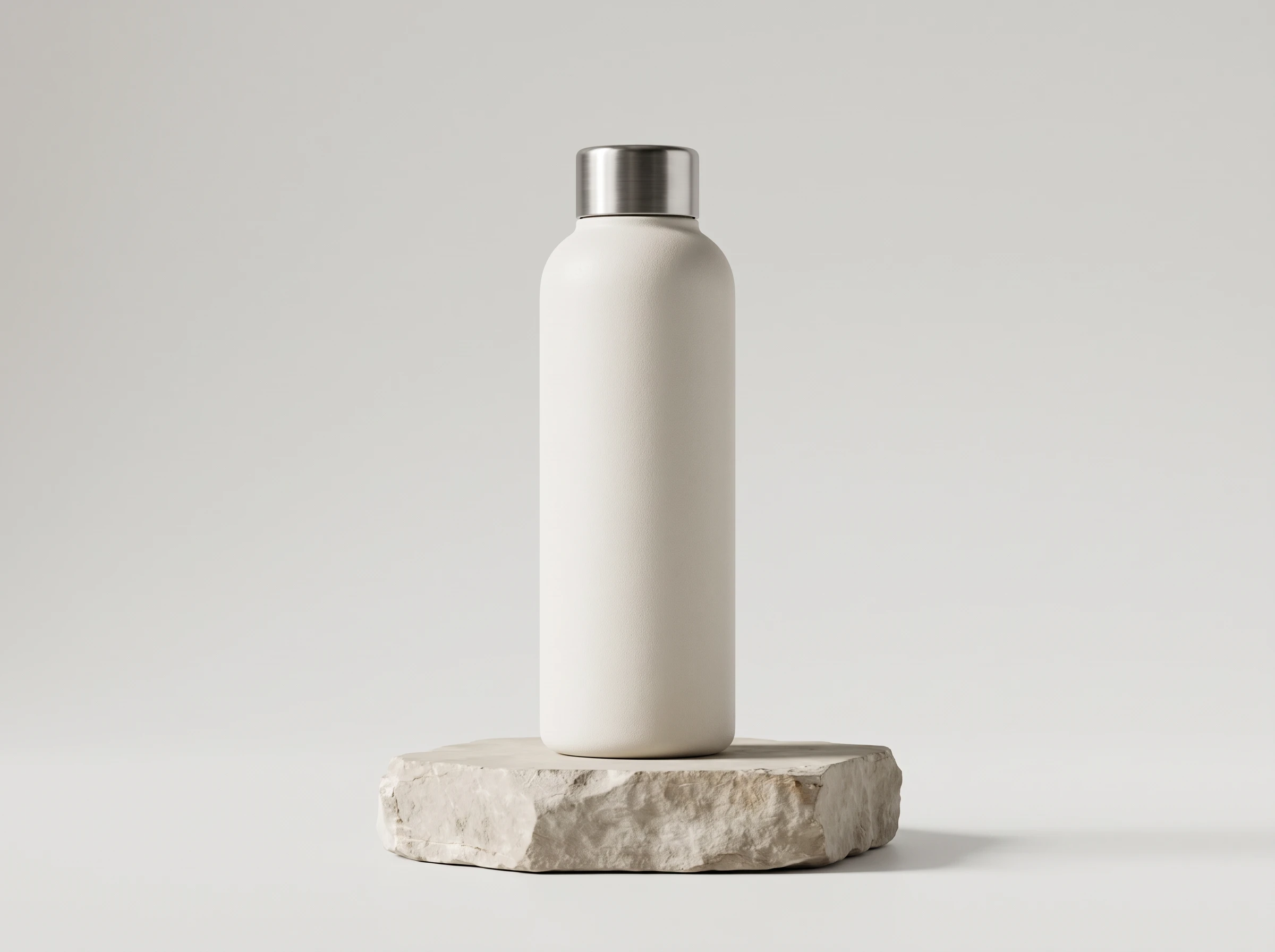
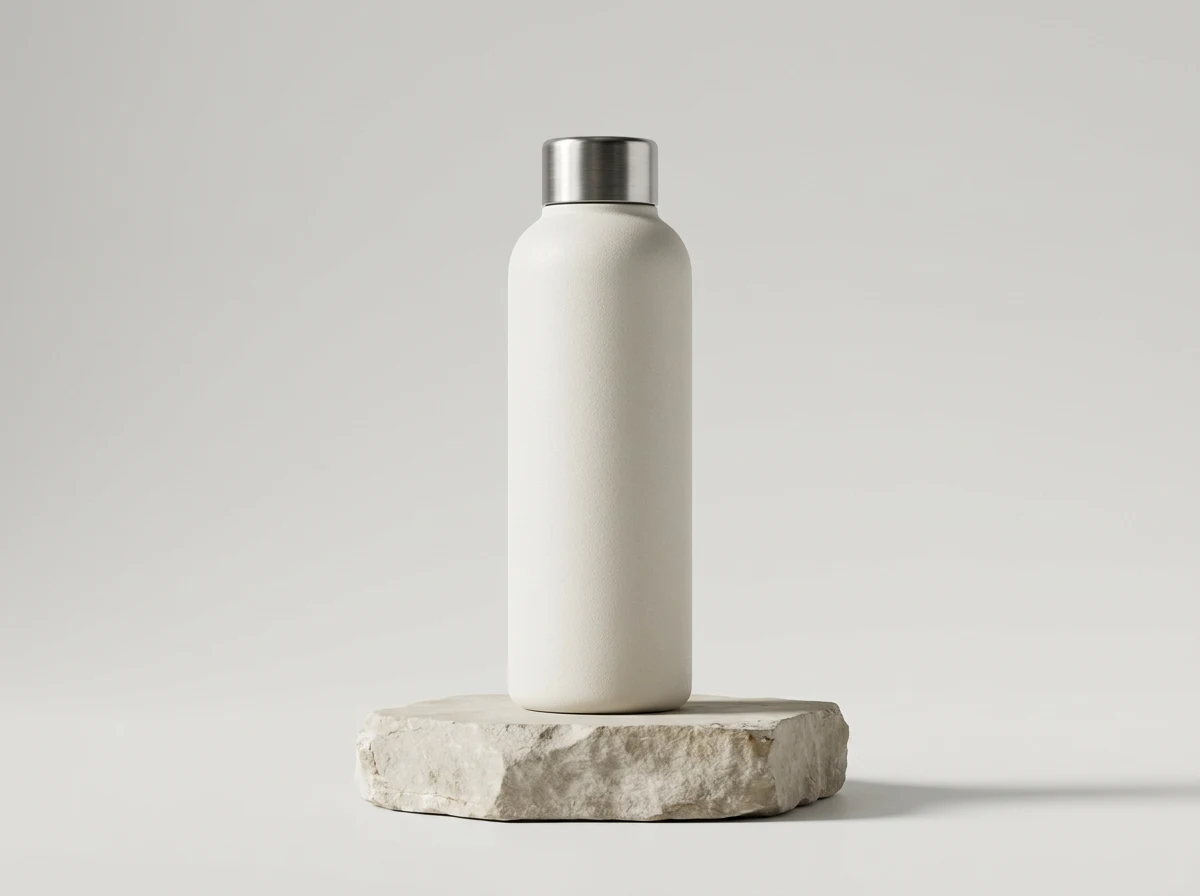
Open a model page to choose settings and write your own prompt.
Reduce distracting shadows while keeping your photo’s subject, background and natural depth.
Upload one clear portrait, product or room photo. Keep the shadow and nearby well-lit areas visible.
Compare the edited area with the original, including skin, labels and contact shadows.
Review the credit quote before submitting. Each new generation creates a separate task with its own cost.
Upload one clear portrait, product or room photo. Keep the shadow and nearby well-lit areas visible.
For example: soften the dark patch on the wall behind the vase; keep the shadow underneath it.
Review the credit quote before submitting. Each new generation creates a separate task with its own cost.
Describe where the shadow falls and what should stay. The edit targets the lighting within your existing scene.
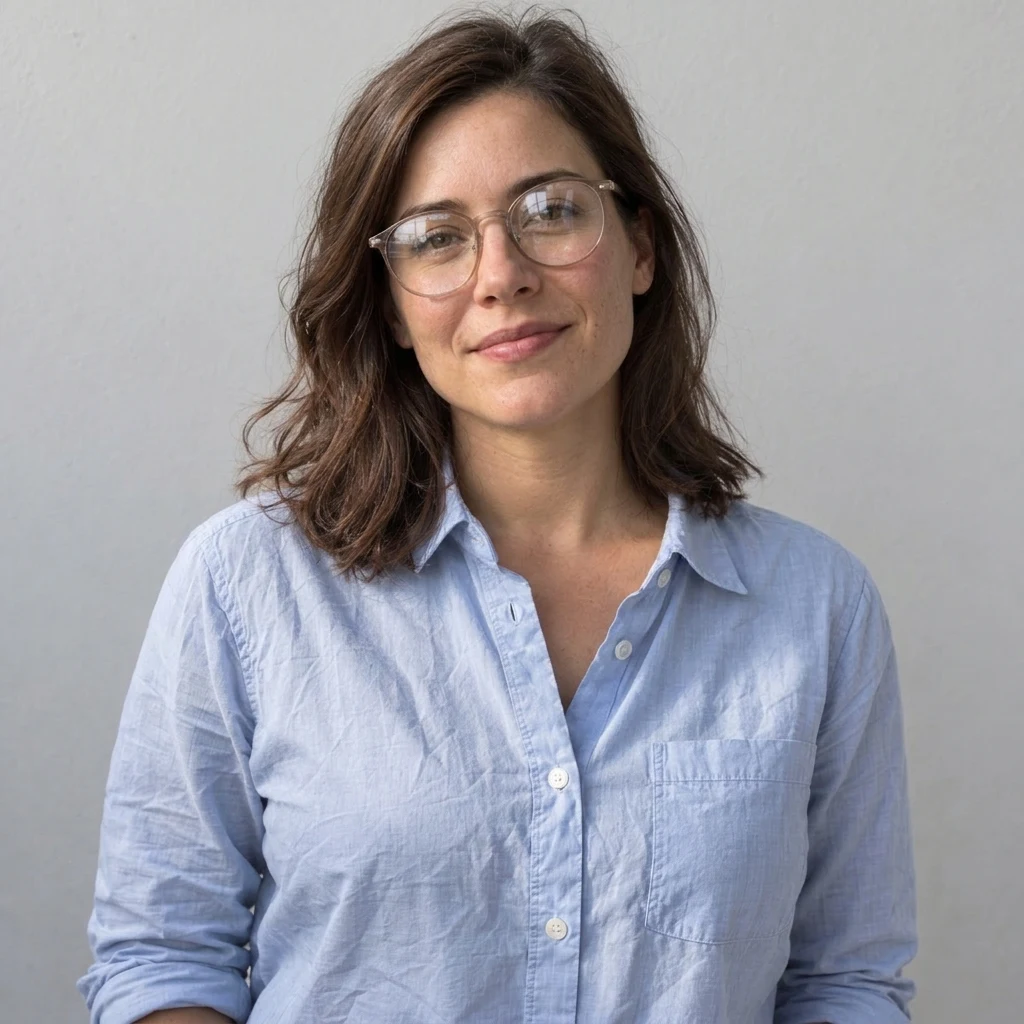
Point out the wall, face or tabletop shadow in the notes. The surrounding visible texture helps guide the edit.
Soft shading under a product and around facial features can stay, so the subject does not look flat or float.
Check skin, hair, edges and printed labels at full size. Areas with no visible detail may be reconstructed differently.
Upload one clear portrait, product or room photo. Keep the shadow and nearby well-lit areas visible.
For example: soften the dark patch on the wall behind the vase; keep the shadow underneath it.
Review the credit quote before submitting. Each new generation creates a separate task with its own cost. Compare the edited area with the original, including skin, labels and contact shadows.
Questions before generating
Describe its position in the optional notes, such as the wall behind the vase. This page has no mask brush; the model interprets your words and may also change nearby details.
The preset aims to reduce unwanted hard shadows while retaining natural shading and contact shadows. Ask for a specific shadow to be softened rather than removing every dark area.
It can propose missing detail, but cannot recover information that is absent from the photo. A better-exposed source gives more reliable guidance for facial features and texture.
Yes, but check product edges, labels, letters and numbers afterward. This is generative image editing, so it is not a guarantee that document text or dimensions remain exact.
No. It requests one 2K still image with automatic aspect ratio, keeping the original scene. For a different setting, use Background Swap or Product Scene.
Yes. Review the quote before generating. Changing the notes and submitting again creates a separate paid task; downloading an existing result does not.
Reduce distracting shadows while keeping your photo’s subject, background and natural depth.