
Seedance 2.5 Flash
Start from a prompt, guide a shot with reference media, or edit a 4–30 second clip. Flash outputs 480p or 720p video with generated sound.
Create videos with Seedance 2.5 Flash.
Explore other video models for text, image and reference workflows.
Start from a prompt, guide a shot with reference media, or edit a 4–30 second clip. Flash outputs 480p or 720p video with generated sound.
Start from a prompt, guide a shot with reference media, or edit a 4–30 second clip. Flash outputs 480p or 720p video with generated sound.
4–30 seconds
Four video workflows
Describe a scene and choose a duration from 4 to 30 seconds.
Animate one image or guide the opening and ending with two frames.
Combine up to 10 images, 5 videos and 5 audio tracks in reference mode.
Edit one 4–30 second source clip with up to 10 images and 5 audio tracks.
Use 480p to review motion and timing. Choose 720p when details matter, and check the credit estimate before submitting.
Describe ambience, sound effects or dialogue in the prompt. Video Edit generates a new track, so keep the source if you need its original audio.
Start from a prompt, guide a shot with reference media, or edit a 4–30 second clip. Flash outputs 480p or 720p video with generated sound.
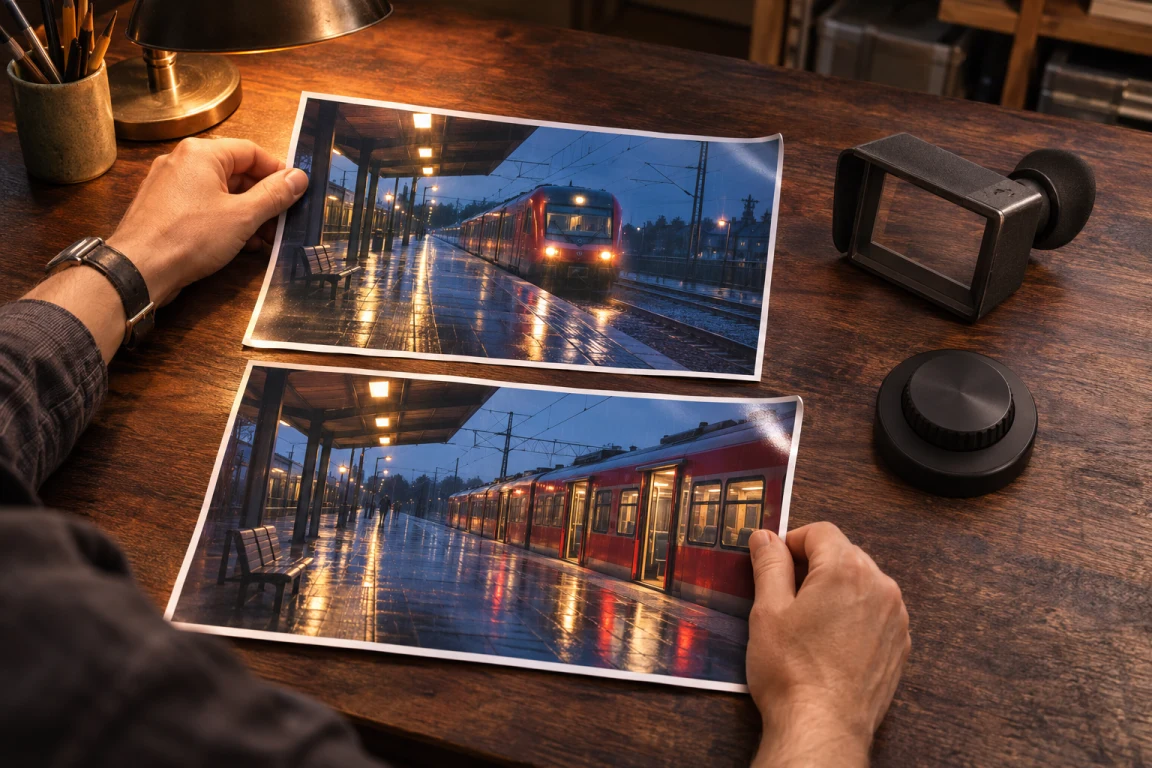
Describe the subject, one continuous movement and a clear ending. Choose 480p to review the motion, or 720p for more detail.
Upload one first frame, or add a matching last frame. The first image sets the framing. Similar lighting and composition across the two frames give the transition a clearer direction.
In reference mode, use @image1 for appearance, @video1 for motion or @audio1 for sound. To change an existing clip, use Video Edit. It follows the source duration and aspect ratio and generates new sound.
Pick text, image, reference or video edit according to the material you have.
Describe the change you want. For an edit, specify what to keep, such as the framing or the subject.
Check the credit estimate before submitting. Review the resulting motion and audio before sharing.
Seedance 2.5 Flash video generator
It supports text, image, reference and video-edit workflows at 480p or 720p.
Flash offers 480p and 720p. Choose Seedance 2.5 if you need 1080p.
Credits depend on resolution and output length. With a reference video, the estimate also uses the total reference video length. Video Edit uses the duration of the source clip.
Reference mode accepts up to 10 images, 5 videos of 2–30 seconds each with 30 seconds total, and 5 audio files with 30 seconds total. Video Edit takes one 4–30 second clip and optional images or audio.
This page generates new audio in Video Edit. Keep a copy of the source if you need its original soundtrack.
Start from a prompt, guide a shot with reference media, or edit a 4–30 second clip. Flash outputs 480p or 720p video with generated sound.